

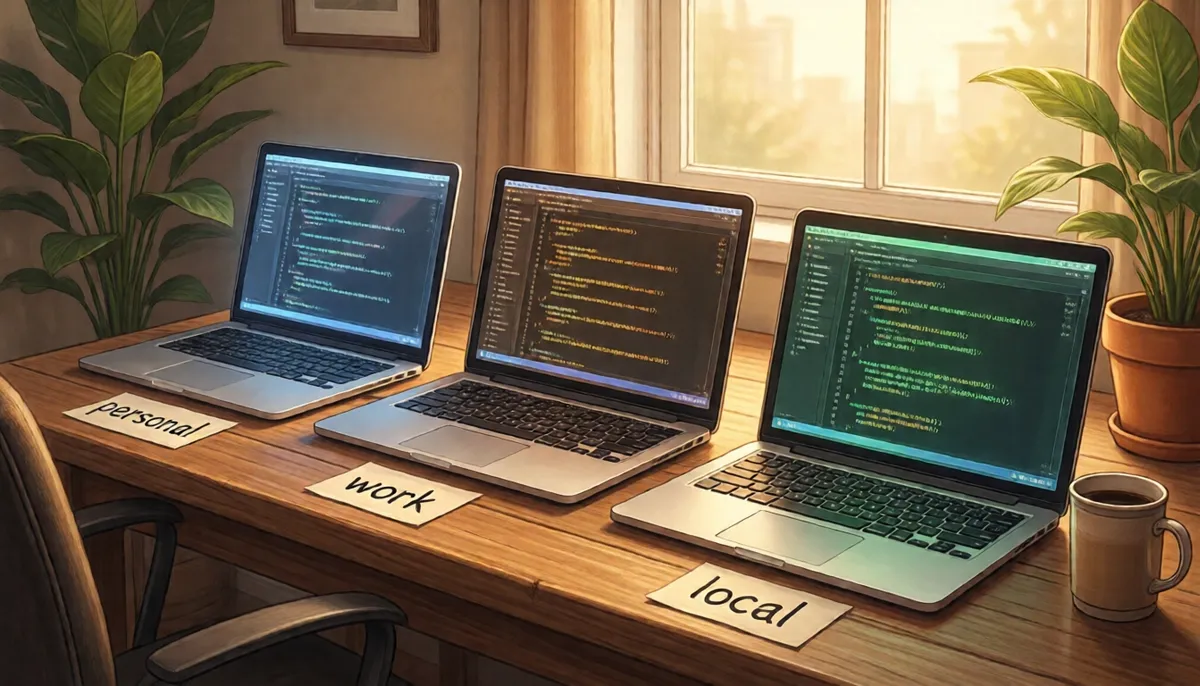
Anthropic doesn't merge your personal Claude history into a Teams workspace, and they bill you for both plans during the overlap. Here's how I run personal, Teams, and a local-LLM agent side-by-side, and how to drag the useful bits of your old account across without an import button.
Most of my actual working memory for the last year has lived inside a personal Claude account. Conversations, Projects, half-written prompts I never finished, custom Styles I’d tuned for specific kinds of writing, and a ~/.claude/ directory that quietly grew into something I’d hate to lose. When it came time to set up a Teams workspace for client work, my first assumption was naive: surely Anthropic has a migration path. They don’t, really. The personal account stays personal, the Teams account starts empty, and for several months you pay for both.
That’s fine, once you stop expecting it to be otherwise. The interesting question isn’t “how do I migrate” — there’s nothing to migrate. It’s how to run the two accounts cleanly at the same time, drag the useful pieces of the old setup across by hand, and have a third agent on standby for the work neither of them should be doing. That’s what this post is about.
What actually transfers (almost nothing)
Anthropic is clear about this in their support docs, even if it takes some clicking to find. A Teams organisation cannot claim a personal Claude account. There’s no merge, no import, no “bring my Projects with me” wizard. You can export your personal account data as JSON from settings, but there’s nowhere to import it back into the Teams workspace. Conversations, Projects, Styles, memory — all stay where they were created.
Enterprise is different: a verified-domain Enterprise org can claim personal accounts under that domain. But on Teams, you start from zero. For a one-person consultancy or a small team, that’s the path you’re on whether you like it or not.
Dragging the useful bits across anyway
The interesting trick is that you don’t actually need an import button. The Claude UI gives you two tools that, between them, do most of the work — they’re just not labelled as migration features.
Memories are exportable, manually. The personal account’s memory feature has an export flow that generates a prompt — a long, structured prompt designed to be fed into any LLM (Claude, ChatGPT, a local model, anything) so it can summarise the contents of your memory file into something you can paste straight into the Teams account’s memory. It’s a clever sleight of hand: there’s no API connection between the two accounts, but the prompt-as-protocol means you can move the substance without the bytes.
Old chats can self-summarise on request. For any conversation that’s worth keeping — a project kickoff thread, a long debugging session, the back-and-forth where you figured out a tricky pattern — paste in a prompt like:
Summarise this entire conversation for migration into another Claude instance. Include the key context, decisions, code patterns, and outstanding questions. Aim for something that another Claude could pick up cold and continue from.
The result is roughly two hundred to five hundred words of distilled context. Paste that into the Teams workspace as the first message of a new conversation (or attach it to a Project) and you’ve moved the part you actually cared about. Most chat history is dead weight you won’t read again — be ruthless about which ones get the treatment.
Projects don’t transfer, but they can summarise themselves. The valuable thing inside a Project usually isn’t the conversation history. It’s the accumulated context — system prompt, custom Style, attached files, the patterns of how you’ve used it. Rather than try to copy any of that by hand, open the Project on the personal side and ask it directly:
Summarise this entire Project — instructions, attached knowledge, recurring patterns of how I’ve used it — into a single system prompt I can paste into a new Project in another Claude account. Aim for something self-contained that reproduces the working context.
The output is usually a few hundred words. Create the new Project in the Teams workspace, paste the summary as the system prompt, attach any files the summary refers to, and you’ve moved the substance. Most Projects survive this kind of compression remarkably well — the long tail of conversation history wasn’t doing much work in the first place.
The pattern across all three: most of what you want to “migrate” is small, structured, and can move as text through your clipboard. The conversations themselves usually aren’t worth the effort.
Side-by-side: three Claudes, not two
The browser is the easy half. A separate browser profile, a Firefox container, or just a different browser entirely — claude.ai’s session sits in cookies and behaves like any other web app. I use a dedicated Chrome profile per account, named after the workspace. Switching is one click on the profile chip.
Claude Code is where it gets interesting, because claude /login is a single-account model. You’re logged in or you’re not. Switching means logging out and logging back in — fine for occasional use but useless if you’re trying to work in two terminals at once, one against personal Max and one against a client’s Teams workspace.
My actual setup runs three named PowerShell functions, not two:
claudeme— the personal accountclaudework— the umage Teams workspaceclaudelocal— Claude Code pointed at a local Ollama endpoint running a strong coding model (currentlyqwen3.6:35b, swapped out as better ones land), used as a junior developer who can churn through grunt work without burning any cloud quota
The trick under all three is one environment variable per shell. CLAUDE_CONFIG_DIR swaps the credentials, settings, hooks, and skills directory; ANTHROPIC_BASE_URL points the same binary at a local server speaking the Anthropic Messages API. Combine those two and you have three completely independent identities sharing one Claude Code installation.
One binary, three identities — two cloud accounts and a local model — separated by environment variables.
A caveat worth being honest about: CLAUDE_CONFIG_DIR isn’t currently listed in Anthropic’s official environment variables documentation. The variable is widely used and stable in practice, and the contents of ~/.claude/ are documented separately, but Anthropic hasn’t formally blessed the override yet. Treat it as the de-facto standard it is, but don’t be surprised if the official docs catch up later.
A second caveat applies to the local lane. ANTHROPIC_BASE_URL is officially documented as an enterprise LLM-gateway setting — for routing Claude Code through Bedrock, Vertex, or an internal proxy. Pointing it at a local Ollama is the same mechanism, but local LLMs aren’t a named use case. It works because Ollama speaks the Anthropic Messages API; treat it as functional but unofficial, the same way as the CLAUDE_CONFIG_DIR trick. Your responsibilities under Anthropic’s Usage Policy still apply to what you ask Claude Code to do, regardless of which backend is serving the response.
How I set it up
I keep two config directories side by side: the default ~/.claude/ for personal use, and ~/.claude-work/ (started empty, populated as I needed it) for the Teams workspace. On Windows, the three functions live in my PowerShell profile:
function claudeme   { $env:CLAUDE_CONFIG_DIR = "$HOME\.claude";       claude @args }
function claudework { $env:CLAUDE_CONFIG_DIR = "$HOME\.claude-work";  claude @args }

function claudelocal {
    $env:ANTHROPIC_AUTH_TOKEN = "ollama"
    $env:ANTHROPIC_BASE_URL = "http://localhost:11434"
    if ($args.Count -eq 0) {
        claude --model qwen3.6:35b
    } else {
        claude @args
    }
    Remove-Item Env:ANTHROPIC_AUTH_TOKEN
    Remove-Item Env:ANTHROPIC_BASE_URL
}
claudeme and claudework each point at a dedicated config directory and otherwise behave like a normal claude launch. claudelocal does a bit more — it redirects the binary at the local Ollama endpoint, defaults to qwen3.6:35b when no other model is passed, and clears the environment variables on the way out so the next plain claude invocation isn’t accidentally still pointing at localhost. The same pattern works on macOS or Linux as shell aliases or functions; the variable names are identical.
Make the functions stick by dropping them into your PowerShell profile — notepad $PROFILE opens (or creates) the profile file, paste the functions, save, and they’re available in every new shell from then on. On macOS or Linux, the equivalent home is ~/.zshrc or ~/.bashrc.
The first time you launch claudework against an empty config dir, you’ll get the normal /login flow against whichever account you authenticate. Do it once per directory and you’re set.
What gets isolated, and what doesn’t
This is the part to think through before you split, because the boundary isn’t always where you want it. With separate CLAUDE_CONFIG_DIR paths, each directory has its own OAuth credentials, settings.json, hooks, skills, agents, MCP servers, and auto-memory. None of it leaks across.
What’s not isolated is the project working directory itself. If you cd into the same repo from both shells, both Claude Code instances see and edit the same files. That’s usually what you want, but it means you still need to think about which account you’re talking to when you’re about to push a change.
The bigger consequence is that anything you keep in the global config dir has to be duplicated to be available in both accounts. If you write a custom skill, install an MCP server, or tune a hook, it lives in one config dir and is invisible to the other. That gets tedious fast.
Re-populating an empty config dir
A fresh Teams config directory starts with nothing: no plugins, no MCP servers, no skills, no slash commands you’ve come to lean on. The personal side has accumulated all of it over time, and there’s no clone command. You have to bring it across by hand — but the inventory side is easier than it sounds.
From the personal config, ask Claude Code what’s actually installed:
# plugins (works as /plugin list inside the REPL too)
claude plugin list

# MCP servers (or /mcp inside the REPL for live connection status)
claude mcp list
Both lists are usually shorter than you’d expect. The plugins worth bringing across are the ones you actually invoke; the MCP servers worth bringing across are the ones with real credentials behind them. Anything you installed once and never used can stay behind.
Then, in a shell with CLAUDE_CONFIG_DIR pointed at your Teams directory, install each one:
# plugins (the marketplace name is part of the install argument)
claude plugin install <plugin-name>@<marketplace-name>

# MCP servers — repeat per server, with the transport and args it actually needs
claude mcp add --transport stdio <name> -- <command>
claude mcp add --transport http  <name> <url>
For plugins from community marketplaces, you’ll need claude plugin marketplace add <repo> first before the install command can resolve the name. The full syntax is in the plugins docs and the MCP docs.
A few things that don’t carry across automatically:
- Credentials in MCP servers. Any OAuth or API tokens stored against an MCP server are bound to the original account. You’ll re-authenticate each remote MCP server on the Teams side — usually a one-time prompt the first time you invoke it.
- Personal custom skills and slash commands. If they live as loose files in
~/.claude/rather than as a packaged plugin, you’ll need to copy them across by hand. This is the moment to ask whether they should actually live in the repo instead, which is the next section. - Hooks. Hooks in
settings.jsonare local to the config dir. Copy the relevant entries, but re-read them first — a hook that made sense for your personal workflow may not be what you want firing on client code.
Treat the first session in the new Teams config dir as a setup session, not a working one. Spend twenty minutes browsing your installed plugins, picking the ones you want, and walking the claude mcp add lines into the new shell. After that, the new config dir feels like home.
The fix: stop putting everything in the global config
The cleanest answer is to push project-specific configuration into the project itself. Per-repo skills, per-repo MCP server lists, per-repo instructions — all of it can live in the project folder rather than in ~/.claude/ or ~/.claude-work/. Once it’s in the repo, it doesn’t matter which account you talk to. The same files load. The same tools light up. The same instructions apply.
The vendor-neutral standard that’s emerged for this is AGENTS.md — a Markdown file at the root of the repo that any conformant coding agent reads as its primary instruction layer. It was donated by OpenAI to the Agentic AI Foundation under the Linux Foundation in late 2025, and it’s read natively by GitHub Copilot, Cursor, OpenAI Codex, Gemini CLI, Aider, Zed, JetBrains Junie, and a dozen others. Microsoft is a Platinum member of the foundation, GitHub’s Copilot coding agent added native support in August 2025, and the Microsoft ISE engineering blog endorses the pattern explicitly.
Claude Code itself reads CLAUDE.md rather than AGENTS.md, but the two are interchangeable in practice — symlink one to the other, or keep them as separate files when the instructions differ enough to matter. The point is that a project-local instruction file replaces a pile of duplicated global setup, and it survives whichever Claude account (or local model) you happen to launch with today.
Pair it with .vscode/mcp.json for tool wiring — a structured, machine-readable manifest that VS Code, Visual Studio 2026, and GitHub Copilot consume directly. Claude Code uses .mcp.json at the project root for the same purpose. Between them, the repo carries its own toolkit and its own instructions, and the per-user, per-account config dir shrinks to credentials and personal preferences.
That’s the migration story most posts don’t tell. Once your skills, MCP servers, and instructions live in the repo, the question of “which Claude account am I on today” stops mattering for the work itself. It only matters for billing.
Things I learned the hard way
A few specifics that weren’t obvious before I ran into them:
API access is its own bill. Neither personal Max nor a Teams seat includes API credits. If you’ve built tooling that hits the Anthropic API directly — agents, batch jobs, anything outside the Claude apps — that’s a third billing line, explicitly separate from any subscription.
Teams seats come in two tiers. Standard seats don’t include Claude Code; Premium seats do. If half your team works in Claude Code, the seat decision isn’t just about message limits — it’s whether the seat covers the CLI at all. Worth checking before sign-up.
Training opt-out flips automatically on Teams. Personal accounts allow Anthropic to use conversations for training unless you opt out. Teams workspaces default the other way: no training on your data. For client work this matters, and it’s one of the few real reasons to be on Teams rather than just running everything from a personal Max account.
The local model isn’t a replacement, it’s a release valve. claudelocal doesn’t compete with the cloud Claude on tricky work. It absorbs the volume work — renaming, refactoring, scaffolding, writing tests for something I’ve already designed — that doesn’t need a frontier model and shouldn’t cost frontier-model money. Treating it as a junior dev rather than a peer is the right framing.
You pay for both during the overlap. There’s no proration, no “convert my Max to a Teams credit” path on the Teams plan. Cancelling personal Max is a one-way decision — once you cancel, you lose access to that account’s conversations and Projects. Most people I’ve talked to keep personal Max running for several months after onboarding to Teams, just to have somewhere to reach the old work.
What I’d actually recommend
If you’re about to move to a Teams workspace, the order I’d do it in:
Decide what stays personal. Side projects, learning, personal experiments — those probably belong on Max forever. Client work and anything subject to a confidentiality agreement belongs on Teams from day one. Be honest about which Projects fall into which bucket before you start copying anything.
Don’t try to “migrate” — re-create selectively. Use the memory export prompt for the long-term context. Use the per-chat summarisation prompt for the few conversations worth keeping. Ask each Project to summarise itself into a seed prompt for its replacement on the Teams side. Skip everything else.
Split Claude Code with CLAUDE_CONFIG_DIR from day one. Don’t try to share ~/.claude/ between accounts and switch with /login. It works for an afternoon and then bites you the first time a personal hook fires on a client repo.
Add a local model as the third lane. Even a single Ollama instance with a decent coder model frees up surprising amounts of cloud quota and gives you somewhere to send the low-judgement work. Wire it up through ANTHROPIC_BASE_URL and you’re using the same Claude Code interface you already know.
Move project-specific config into the project. AGENTS.md (or CLAUDE.md), .mcp.json, per-repo skills, per-repo hooks. Once it’s in the repo, the migration question dissolves — any account, any model, any agent that reads the standard picks the same instructions up. The repo becomes the source of truth, and your config directories shrink to the bits that really are personal.
Keep personal Max alive until you’ve stopped reaching for it. It’s the only place your old conversations exist. Cancel it the month you realise you haven’t opened it in three weeks, not before.
The migration isn’t complicated. It’s just not a migration — it’s running parallel accounts cleanly until the personal one quietly stops mattering, and putting enough in the repo that it doesn’t matter which one you launched today.