

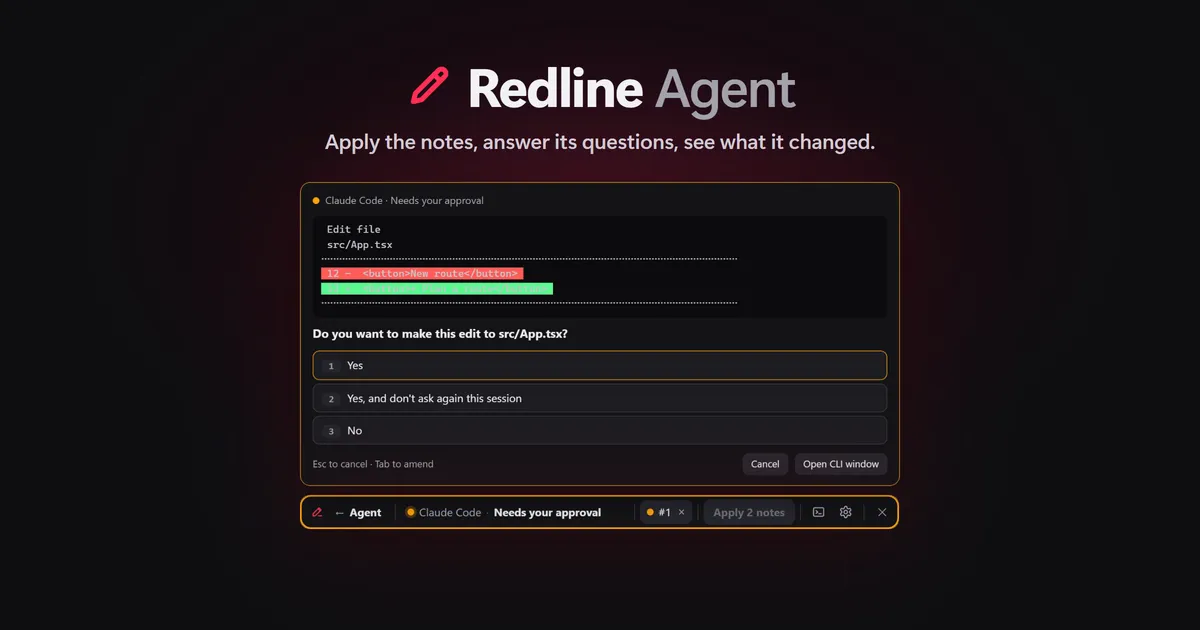
Most of us still work with coding agents the terminal way: we take the work to the agent, then go back to check on it. For UI and UX work that is backwards. Redline's new agent panel puts the agent in the running app, next to the notes, the status and the questions it needs answered.
In the first post about Redline I described the new rhythm of giving an agent UI feedback. Click through the app, pin notes where something is off, and when there are a handful, type /redline in the agent and go straight back to the app.
It was a big improvement. It also still had a seam in it.
The notes lived in the browser. The agent lived in a terminal. So every batch still started by leaving the page: find the right terminal, start or pick a session, type the command, and then find your way back to where you were. The page you were on, the dialog you had open, the state you had clicked your way into.
On a normal day I have several projects open, with agent sessions running in most of them. The terminal that belongs to the app in front of me is rarely the one on top. So I go looking for it, hand over the notes, switch back, and the thing I was about to check next is gone. That isn’t a focus problem. It is what working with several agents at once looks like, and every agent you add makes the hunt a little longer.
That is the same round trip the first post set out to remove, just once per batch instead of once per finding. Smaller, but still there, and the deeper you are into a testing session, the more it costs to step out of it.
We keep taking the work to the agent
Look at how most of us work with coding agents today. The agent sits in a terminal or a chat window, and we bring the work to it. We copy in the error. We paste the screenshot. We describe the page. Then we go back to where the work actually is, and come back later to see how it went.
That made sense when the agent was a tool you consulted. It makes less sense when the agent is doing a good part of the work.
For backend work the terminal is a fine place to meet. For UI and UX it is the wrong room. The work happens in the browser: you see the layout, you feel the flow, you notice the label that doesn’t fit. Every trip to the terminal is a trip away from the thing you are judging.
Everything else we use while building a UI has already moved into the page. The inspector is in the browser. Hot reload shows the change where you are looking. Redline put the feedback there. The agent was the one still living somewhere else.
The agent was the last tool that didn’t live in the product.
The agent toolbar
So that is what we built next. Redline now has an agent panel: press A in the Redline toolbar, or Alt+Shift+A from anywhere on the page, and the agent toolbar opens in the running app.
From there:
- Apply notes sends the open notes to the agent, from every page of the app, and the button says how many. One click instead of a trip to the terminal. Or skip even that: when you save a note, a toast offers to send it straight on.
- The status shows on the page. A light sweeps round the toolbar while the agent works, it glows orange when it is waiting for you, and it turns green when it’s done. With the overlay closed, the same signal shows as a ring around the launcher. You can keep testing and still see out of the corner of your eye when the agent needs you.
- Its questions come to you as a card. When the agent asks for permission to make an edit, the card shows the diff and the options. With Claude Code that is every option it offers, including “yes, and don’t ask again”, plus a field for typing your own answer; an ACP agent sends its own options, and any other CLI gets Allow and Deny. You answer it where you are.
- You see what it changed. A paperclip on each session’s tab lists what that session touched, prompt by prompt: the files it changed, with the diff, and any images or links it pointed at.
- It sees what you see. The sessions it starts get Redline’s own tools: they can read the open page’s DOM and its console, and tell the notes panel which note they are on. “This button” means the button on your screen, not a guess from the source.
- The notes panel follows along. Each note shows whether it is being worked on, waiting for your answer, or done.
- The terminal is one click away. The >_ button opens it, for when you want to see exactly what the agent is doing. You can also type to it there, like in any terminal, and its questions still come up in the card.
The loop that used to be pin, switch, prompt, switch back, check, switch back again now closes on the page.
A fresh agent for every batch
By default the panel starts a fresh session for every prompt, with only the notes from that prompt and none of the history. Or it can keep one session going, which keeps its context between prompts and makes follow-ups cheap.
For UI work, fresh is usually what you want. Notes on the settings page and notes on the dashboard rarely have anything to do with each other, so there is no reason for one long session to drag the context of both. With fresh sessions, each batch gets its own agent, several can run at the same time, and each one gets a tab in the toolbar of the app it is working on. That also settles which terminal belonged to what: you find an app’s sessions by opening the app.
Which one is a setting under ⚙ in the toolbar, so you pick per situation rather than once in a config file. The same menu has one more switch that matters once several sessions run at once: each new session can get its own git worktree and branch, so two agents never edit the same file at the same time. When a session ends, you keep the branch, merge it or throw it away. The catch: the page only shows a worktree’s changes once you merge them, so worktrees are for agents working in parallel, not for the quick tweak you want to see live.
It’s still your agent
This is not a new agent, and it is not a chat window that imitates one. The panel runs your own agent CLI on your dev server. Claude Code and OpenCode are offered when they are installed, you pick one under ⚙ along with its model and effort, and any other terminal program or ACP agent can be added. (OpenCode asks before nothing by default; set it to ask, and its questions come up in the card too.) Your CLAUDE.md or AGENTS.md still applies. Your permission settings still apply. The agent’s own permission prompts are exactly the ones you’d see in the terminal; the card just shows them where you are.
You can add rules for the sessions Redline starts. On our own website, those sessions are told not to commit, not to push and not to create tags, and not to run a production build while the dev server runs. The person applying notes from the page should be fixing the page, not shipping it.
Where it runs, and where it doesn’t
An agent that can edit your code is not something you want one network request away from a stranger. So the agent panel is local dev only. It answers this machine and nothing else, every call needs a token that only lives as long as the dev server process, and it refuses requests from other sites.
We went one step further on our own site. Our normal dev server listens on the local network, so we can open the site on our phones. That is fine for the overlay, but not something we want next to a running agent. So we now have two commands: the usual one, on the network and without the agent, and a second one that binds to localhost only and turns the agent panel on. Phone testing on one, agent work on the other.
A small decision. We’d rather make it on purpose than inherit it from a default.
Testing as a user, not as a developer
In the first post I wrote that every trip to the chat is a switch of head, not just of window. In the app you’re a user. In the chat you’re a developer. The agent panel takes away the last of those trips: you stay on the page, point, answer the odd question in a card, and keep looking at the app the way a user would.
For UI and UX work that is the part that matters. The label that doesn’t fit, the gap that’s slightly off, the flow with one click too many: those only get noticed by someone who is still looking at the page. The agent works in the background and tells you when it needs you, the way the colleague at the next desk would.
First we stopped describing what we could point at. Now we’ve stopped leaving the page to ask for it.
Try it
The agent panel is its own package, so nobody installs a terminal they don’t use:
npm install -D @umage.ai/redline @umage.ai/redline-agentThen turn it on with redline({ agent: true }) in your dev server config. It offers the agent CLIs it finds installed; redline({ agent: 'opencode' }) picks one by name. The README on GitHub has the setup for Vite, Astro, Next.js, Angular and plain Node servers, and the options for sessions, worktrees, prompt buttons and instructions. Redline is free and open source under the MIT licence, and issues and pull requests are welcome.
For feedback that arrives after the site is live, from people who will never run your dev server, Allan’s post on AnnotateTheWeb covers the other end.
Stay on the page.